
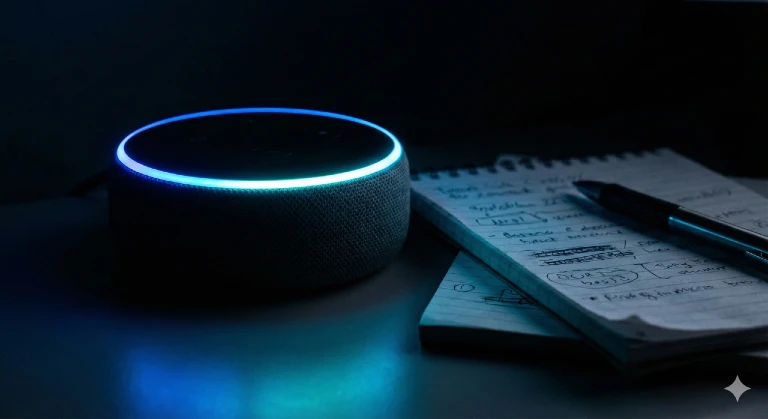
The Amazon Echo is more than just a hands-free speaker. It is a passive recording device sitting in over 70 million American homes. For a private investigator, an Alexa device is often the most valuable witness in the room.
Most users know Alexa for playing music, setting timers, or checking the weather. However, the device is constantly logging interactions, timestamps, and even voice recordings. In domestic investigations, custody battles, and corporate security sweeps, understanding how to extract this data is a critical skill.
When a subject speaks to Alexa, they create a permanent digital footprint. This data can prove someone was in a specific room at a particular time. It can reveal their state of mind. It can even uncover hidden purchases or secret meetings.
This article outlines how Alexa works from a forensic perspective. It also lists the commands and settings every investigator should know to gather evidence effectively.
How Alexa “Listens” and Records Evidence
It is a common misconception that Alexa records everything constantly. Technically, the device stays in “passive listening” mode. It waits for the “wake word,” which is usually “Alexa,” “Echo,” or “Computer.”
However, once the device hears that wake word, it shifts to active recording. It captures the audio and sends it to Amazon’s cloud servers for processing. This is where the evidence lives.
The “False Trigger” Phenomenon Sometimes, Alexa hears a sound that resembles the wake word. It might be a word on the TV or a similar-sounding name. When this happens, the device records audio even if the user didn’t intend to speak to it.
Getty Images
The Gold Mine: Reviewing Voice History
If you have legal access to the account, the Voice History is your first stop. This log contains a record of every interaction the user has ever had with the device.
How to Access Voice History. To view this data, you need access to the Alexa App or the Amazon account via a web browser.
- Open the Alexa App.
- Navigate to More > Settings > Alexa Privacy.
- Select Review Voice History.
What You Can Find in the Logs The data here goes beyond simple text logs.
- Timestamps: This establishes an alibi or presence. A request like “Turn off the lights” at 3:00 AM proves the subject was awake and at home.
- Audio Clips: You can listen to the actual recording of the user’s voice. This allows you to analyze their tone. Do they sound intoxicated? Are they whispering? Is there another person speaking in the background?
- Location Data: Queries like “Where is the nearest liquor store?” or “What is the traffic to [address]?” reveal intent and destination.
Critical Voice Commands for Investigators
If you are physically present in a room with an active Alexa device (and have client permission), you can use voice commands to gather immediate intelligence. These commands prompt the device to reveal information stored in its short-term memory or cloud settings.
“Alexa, what did I say?” This command replays the very last interaction the device recorded.
- Investigative Use: If you enter a room and suspect someone was just using the device, this command confirms it. It effectively tells you what the previous user was doing moments before you arrived.
“Alexa, read my notifications.” Amazon uses the Echo to alert users about deliveries and shopping updates.
- Investigative Use: This can reveal recent purchases. You might hear, “You have a shipment arriving tomorrow containing [Item Name].” In domestic cases, this could reveal gifts sent to a secret lover. In corporate cases, it might show the purchase of unauthorized equipment.
“Alexa, what is on my calendar?” Many users link their Google or Outlook calendars to Alexa for convenience.
- Investigative Use: This provides instant access to the subject’s schedule. You might find appointments that do not match their stated alibi. Look for generic entries like “Meeting” at odd hours.
“Alexa, announce [message].” This command broadcasts a voice message to all other Echo devices registered to the account.
- Investigative Use: This helps you map the property. If you aren’t sure if there are hidden devices in a garage, guest house, or basement, this command triggers them all. You can physically walk the property and listen for the response to locate hidden sensors.
“Alexa, where is my stuff?” This tracks active Amazon deliveries.
- Investigative Use: This confirms the physical location of delivered goods. If a package is being delivered to an address that isn’t the family home, you have a lead on a secondary location or a safe house.
The “Drop In” Feature: Counter-Surveillance Risks
One of Alexa’s most controversial features is “Drop In.” This functions like an intercom. It allows a user to instantly connect to another Echo device and listen to the audio in the room without the other side needing to “answer.”
The Risk to Your Client. In divorce cases or stalking investigations, we often find that an estranged partner has left “Drop In” enabled. They might move out of the house, but leave the device registered to their account. This allows them to listen in on your client at any time.
How to Check and Disable It. As part of a technical sweep (TSCM), always check the Drop In status.
- The Check: Open the app and view the device settings under “Communications.”
- The Fix: You can issue the voice command, “Alexa, turn off Drop In,” to immediately block this feature.
Smart Home Logs: The Silent Timeline
Alexa acts as a hub for smart lights, locks, thermostats, and security cameras. Even if a user deletes their voice history, the Smart Home Activity Log often remains intact. These devices create a timeline of physical movement within the house.
Smart Locks: Smart locks create a precise log of entry and exit.
- Evidence: “Front Door unlocked at 11:42 PM” or “Garage Door opened at 5:00 AM.” This data is hard to dispute in court.
Thermostats: A sudden change in temperature settings can indicate when someone arrived home or woke up.
- Evidence: If the thermostat is manually adjusted at 2:00 PM, someone was physically present to change it, even if they claim they were at work.
Smart Lights: Lights turning on or off establish activity patterns.
- Evidence: “Master Bedroom lights turned off at 2:00 AM” helps establish sleep patterns. “Guest room lights turned on” might indicate a guest is staying in the home secretly.
Investigating Shopping and To-Do Lists
Users often treat Alexa like a digital notepad. The Shopping List and To-Do List are stored in the app and can be accessed via voice.
“Alexa, read my shopping list.”
- What to look for: Look for items that indicate travel (travel-size toiletries), concealment (cleaning supplies, burner phones), or gifts that your client did not receive (flowers, jewelry).
“Alexa, read my to-do list.”
- What to look for: Reminders to “call [Name]” or “cancel subscription” can provide leads on associates or financial habits.
Privacy & Legal Warning: Do Not Cross the Line
While Alexa data is powerful, it is protected by law. As a private investigator, you must operate within strict legal boundaries.
The Computer Fraud and Abuse Act (CFAA). Accessing an Alexa account without the owner’s consent is a federal crime. It is considered unauthorized access to a protected computer system.
Consent is Key. You generally need written consent from the account holder to access this data. In domestic cases, if your client is a joint owner of the account, they may be able to grant this consent. However, you should always consult with an attorney before accessing shared accounts.
Two-Party Consent Laws: Listening to the audio recordings stored in the cloud falls under wiretapping and recording laws. If you are in a “two-party consent” state, using those audio clips as evidence might be illegal if the other person on the recording did not know they were being recorded.
Summary
The Amazon Echo is not just a convenient gadget for playing music. It is a logbook of daily life. It tracks movement, conversations, schedules, and purchases.
For a skilled investigator, knowing how to navigate an Alexa device’s settings, history, and commands can be the missing link in a timeline. It can provide the proof needed to close a case. However, this power comes with responsibility. Always ensure you have the proper legal standing to access this data.
If you are interested in learning more about digital footprints, check out our guide on Computer Forensics. For more tools to assist your investigations, review our OSINT Research Tools.
Sources
- https://www.amazon.com/gp/help/customer/display.html?nodeId=GVP69FUJ48X9DK8V
- https://www.eff.org/deeplinks/2022/07/police-want-your-smart-home-data-we-need-warrants
- https://www.statista.com/statistics/1026023/smart-speaker-installed-base-us/
- https://www.pewresearch.org/internet/2019/11/21/5-privacy-and-the-internet-of-things/
| Preview | Product | Price | |
|---|---|---|---|

|
Amazon Echo Dot (newest model) – Vibrant sounding speaker with Alexa+ Early Access, Great for… |
$31.99 |
View on Amazon |

- Mastering the Art of Process Service: Why Private Investigators Are the Gold Standard - March 1, 2026
- Mastering PimEyes: The Ultimate OSINT Guide for Private Investigators - February 23, 2026
- Navigating Privacy Laws: A Compliance Guide for the Modern Investigator - February 18, 2026
How do you go back to normal (where you were) after asking a question and getting a response? Example: alexia is showing general things, you ask to show pictures, then after looking a pictures for awhile you want want her to go back to general things.
The iphone number has changed for someone I frequently call. How do I delete the old number and enter the new in my Alexa Echo?
you need to open the Alexa app on your phone that the Echo is linked to, under “Communicate” find the contact you wish to change the number for, edit the number and then save the contact with the new information.
What is command to stop green amazon package delivery notice?
What about commands to interact with other Alexa devices? (Intercom function, etc)?
you need to use the “DropIn” command and name the other device you wish to interact with.
JUST GOT MY ECHO BUT IT WON,T GO OFF AT NIGHT THE CIRCLE OF LIGHT STAYS ON ALL THE TIME,,,WHAT DO I DO?
I would recommend that you unplug it and then plug it back in. Once it boots back up, see if the problem continues. If that doesn’t help, here’s a thread from the Amazon Help Forum.